

In this post, we’ll go through one method of creating new Attribute Exchange Rules (Tagsets). This process requires verifying the correct Work Area properties and environment attributes are being used. I will use tagset mappings and attribute exchange rules interchangeably.
The new tagset will consist of the following:
- ProjectName – Work Area property
- ProjectNumber – Work Area property
- ProjectLocation – Work Area property
- ProjectManager – Work Area property
- Title01 – Environment attribute
- Title02 – Environment attribute
- Title03 – Environment attribute
- Title04 – Environment attribute
- DocCreateDate – Document property
- DocCreator – Document property
- FolderGUID – Folder property
All of the ProjectWise related cmdlets are available using the PWPS_DAB module. At the time of this post, I am using version 23.4.1.0. Take a look at the help for each of the cmdlets to become familiar with their functionality, available parameters, etc.
- Get-PWEnvironments
- Get-PWEnvironmentColumns
- Get-PWTagSets
- Export-PWTagMappings
- Import-PWTagMappings
Variables
I am using a few variables to specify the Work Area type, Environment, new tagset name, tagset type, and the output name of a tagset report we will create and use as a template.
# Work Area containing properties to bind to the tagset.
$workAreaType = 'MyWorkArea'

# Environment containing attributes to add to the tagset.
$environmentName = 'Simple'

# New tagSet name.
$newTagSetName = 'MyTagSet'

# TagSetType has to be 'MicroStation', 'AutoCAD', or 'MSOffice'.
$tagSetType = 'MicroStation'

# Output file name.
$OutputFile = "c:\PSShare\Reports\TagsetMappings_$($tagSetType)_$(Get-Date -Format yyyyMMdd).xlsx"
Export TagSet Mappings
First we will export the existing tagset mappings to get a properly formatted spreadsheet. Once exported we can simply remove all of the existing data and enter the information for the new tagset.
# Export all tagsets by tagsettype for a template file.
# Enter new tagset and mapping information.
# Remove all older information prior to importing back in.
Export-PWTagMappings -OutputFile $OutputFile -TagSetType $tagSetType -Verbose
# The following will open the Excel file.
Explorer $OutputFile
The following shows the exported tagset data.
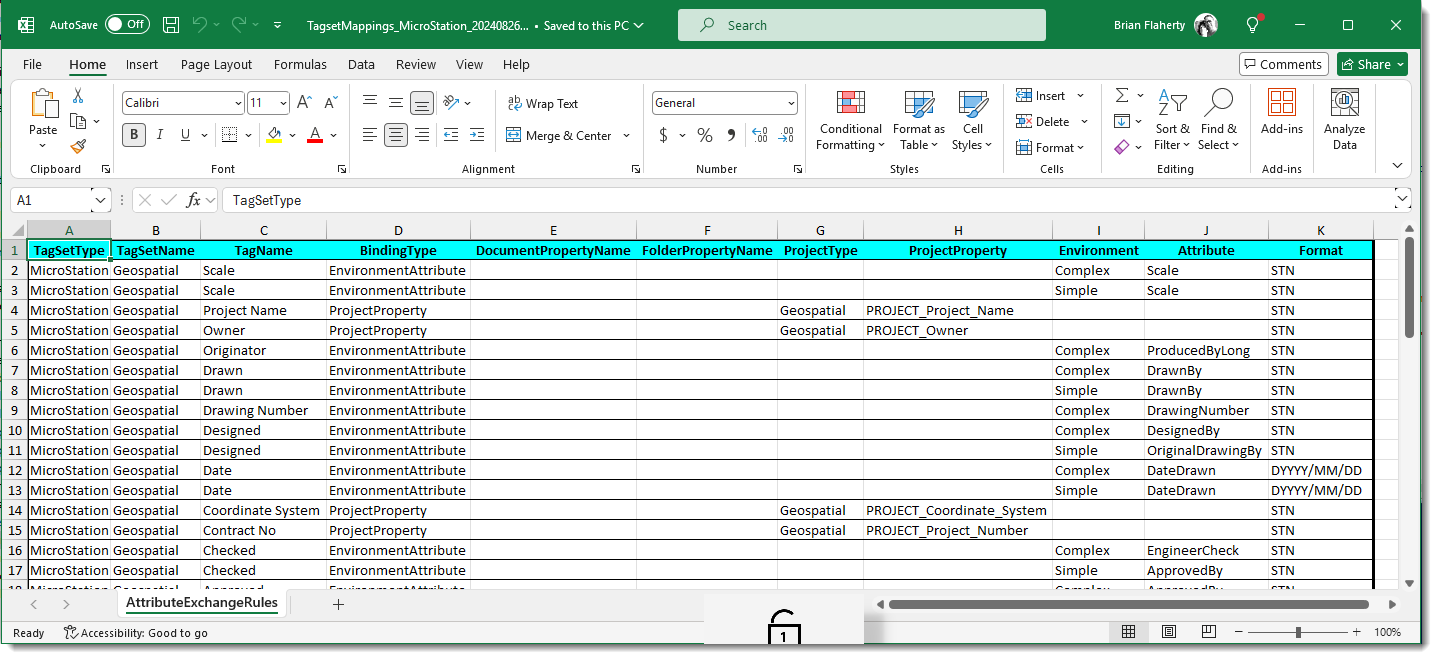
Remove all data from the spreadsheet except for the columns (of course). This will be used as our template for the new tagset data.
Verify TagSet Doesn’t Exist
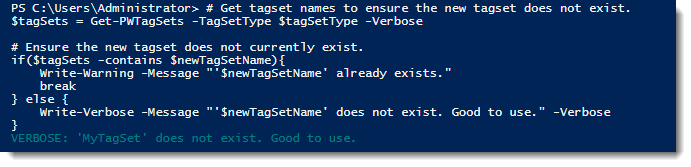
Let’s ensure the tagset we are trying to create doesn’t already exist.
# Get tagset names to ensure the new tagset does not exist.
$tagSets = Get-PWTagSets -TagSetType $tagSetType -Verbose

# Ensure the new tagset does not currently exist.
if($tagSets -contains $newTagSetName){
    Write-Warning -Message "'$newTagSetName' already exists."
    break
} else {
    Write-Verbose -Message "'$newTagSetName' does not exist. Good to use."
}
The following shows the PowerShell output.
Verify Work Area Type and Property Names
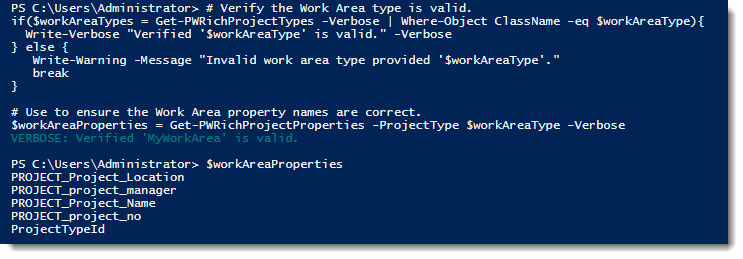
Prior to importing in the new tagset data, it is a good idea to ensure the correct Work Area type is specified and verify/validate the names of the Work Area properties.
You can use the following to ensure the Work Area type is correct and get a list of property names to validate.
# Verify the Work Area type is valid.
if($workAreaTypes = Get-PWRichProjectTypes -Verbose | Where-Object ClassName -eq $workAreaType){
    Write-Verbose "Verified '$workAreaType' is valid." -Verbose
} else {
    Write-Warning -Message "Invalid work area type provided '$workAreaType'."
    break
}

# Use to ensure the Work Area property names are correct.
$workAreaProperties = Get-PWRichProjectProperties -ProjectType $workAreaType -Verbose
The following shows the PowerShell output.
Verify Environment and Columns
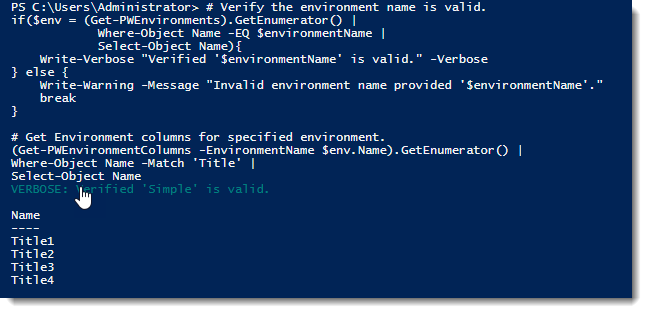
Prior to importing in the new tagset data, it is a good idea to verify/validate the names of the Work Area properties and environment attributes to ensure they are correct.
You can use the following to ensure the environment name is valid and get a list of column names to validate.
# Verify the environment name is valid.
if($env = (Get-PWEnvironments).GetEnumerator() | Where-Object Name -EQ $environmentName | Select-Object Name){
    Write-Verbose "Verified '$environmentName' is valid." -Verbose
} else {
    Write-Warning -Message "Invalid environment name provided '$environmentName'."
    break
}

# Get Environment columns for specified environment.
$envColumns = Get-PWEnvironmentColumns -EnvironmentName $env.Name -Verbose
The following shows the PowerShell output.
Populate Table with TagSet Data
Now that we’ve verified the tagset name, the Work Area type and property names, and the environment and environment attribute names, let’s populate the Excel template.

Create New TagSet
Finally, let’s import the tagset mappings and create our new tagset.
You can also use this method to update/add attributes to existing tagsets as well. I don’t think you can remove attributes. Be sure to test.
# Use the exported file as a template for creating new tagsets.
# If using this to update tagsets, keep in mind that attributes can be added, but NOT removed.
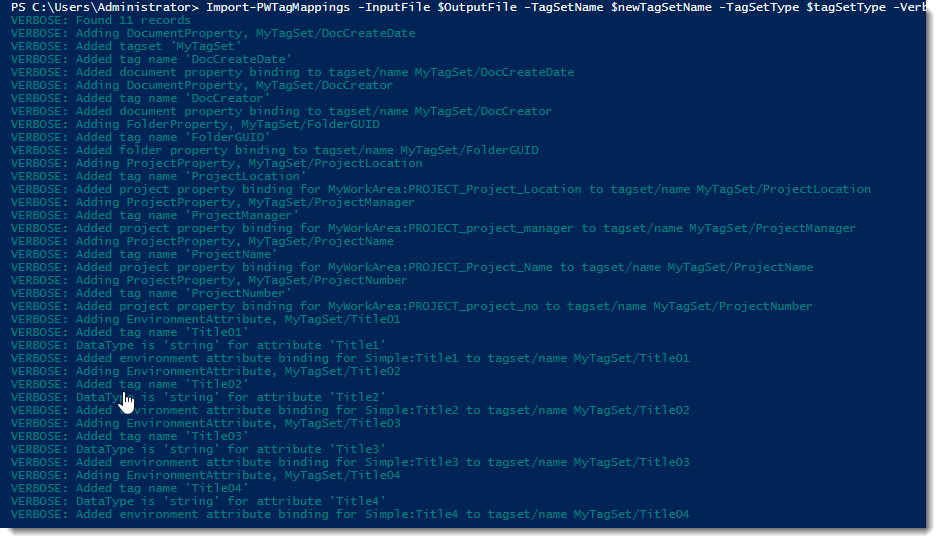
Import-PWTagMappings -InputFile $OutputFile -TagSetName $newTagSetName -TagSetType $tagSetType -Verbose
The following shows the PowerShell output.
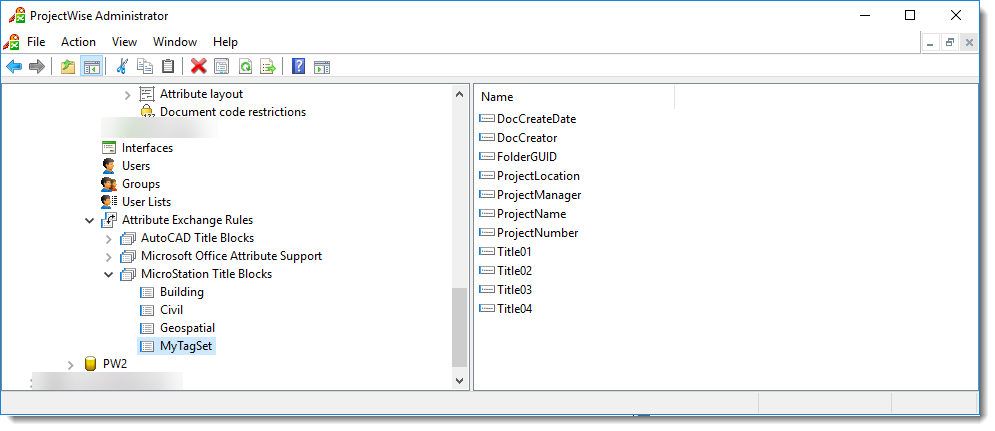
The following shows the new TagSet within ProjectWise Administrator.
Experiment with it and have fun. Hopefully, you find this useful.
Please let me know if you have any questions or comments. If you like this post, please click the Like button at the bottom of the page.

 powerwisescripting.blog