

In this post, I’m going to share an update to the ProjectWise customization tool I created to add some additional functionality. This is a simple tool but has proven to come in handy for me.
You can download a zip file (PWTools2) containing the following two files:
- PWTools.dll
- PWTools.mrr
Copy the two files into the following folder:
C:\Program Files (x86)\Bentley\ProjectWise\bin
The next time you launch ProjectWise Explorer, you should see a new “PW Tools” menu item.
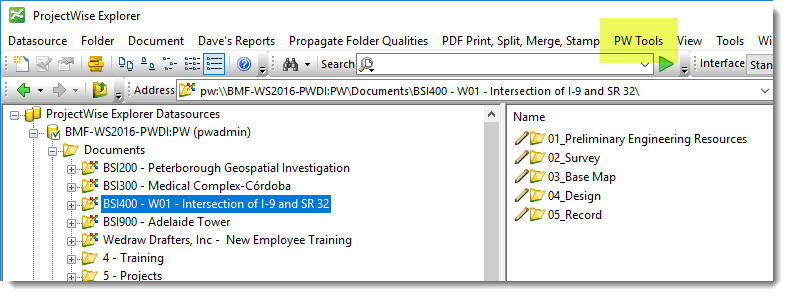
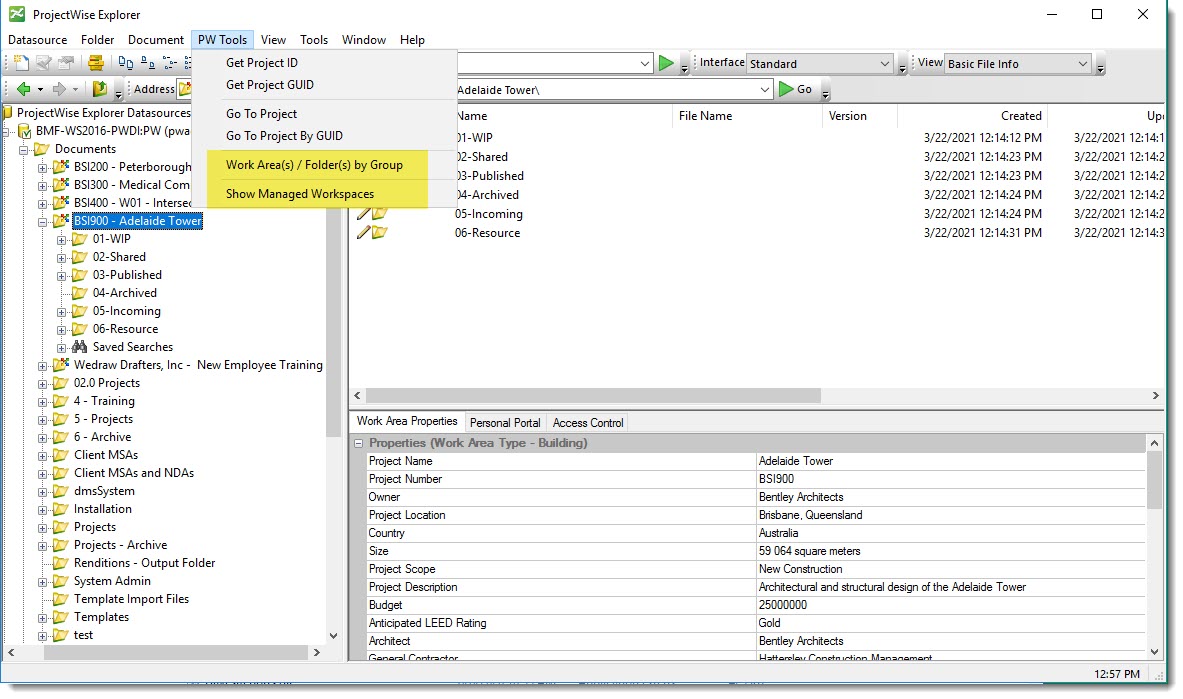
I have added a few new commands. Two have been added to the PW Tools menu and one has been added to the Tools menu.
PW Tools Menu:
- Work Area(s) / Folder(s) by Group
- Used to show all Work Areas and/or folders which have a selected group applied to the access control.
- Contains a combobox listing all ProjectWise Groups.
- Show Managed Workspaces
- Used to view the Workspace CSBs applied to a Work Area/folder.
Tools Menu:
- Toggle Version Display
- Used to toggle on the “Show all versions” user setting.

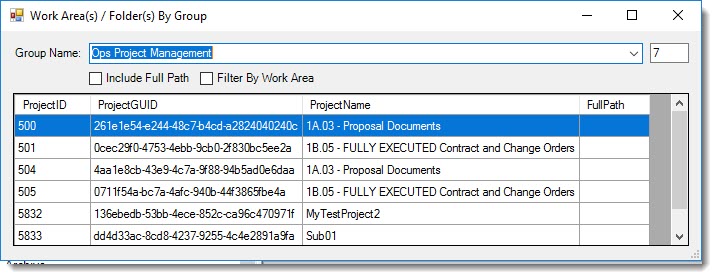
Work Area(s) / Folder(s) by Group
- Click the Work Area(s) / Folder(s) by Group menu item
- A dialog will display with a combobox listing all groups within the active ProjectWise datasource.
- Select a group
- All Work Area(s)/folder(s) will be listed within the datagridview.
Options
There are two options available:
- Include Full Path
- Will include the full path to each Work Area/folder returned.
- Filter By Work Area
- Used to only return Work Area(s).
Context Menu
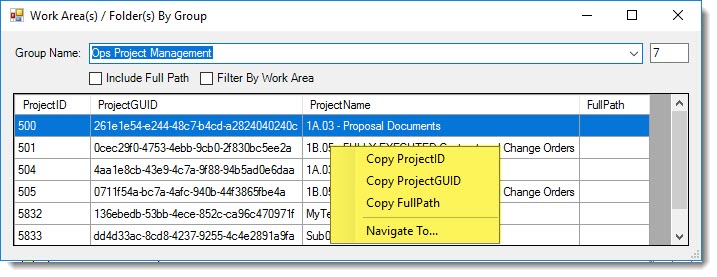
If you right mouse-click on a selected folder, a context menu.
- Copy ProjectID
- Copy ProjectID to clipboard.
- Copy ProjectGUID
- Copy ProjectGUID to clipboard.
- Copy FullPath
- Copy FullPath to clipboard.
- Navigate To…
- Navigates to the selected folder.
Show Managed Workspaces
Used to show the Managed Workspace(s) associated with the selected Work Area / folder.
- Click the Show Managed Workspaces menu item.
- A dialog will display with a combobox listing all Workspaces CSB(s) associated with the selected Work Area / folder.
- Select a Workspace
- The CSB contents will display.
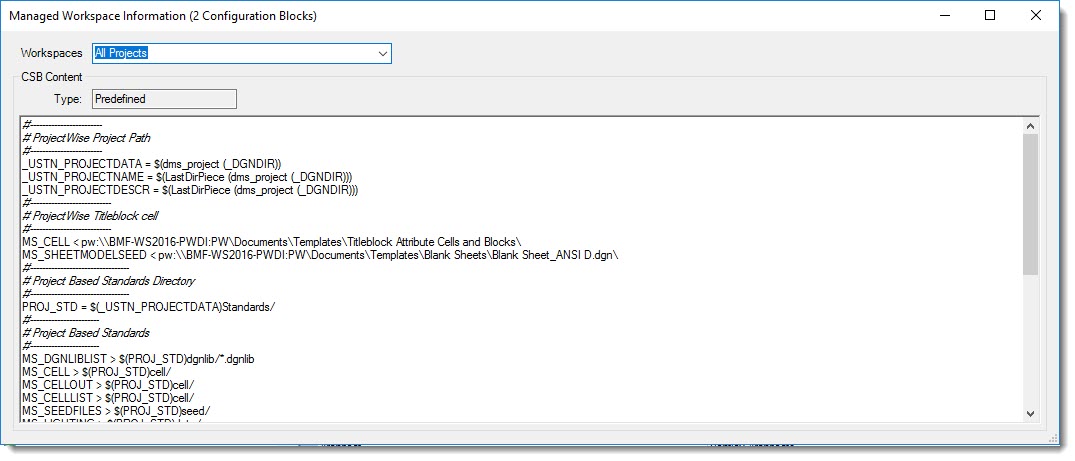
If the selected folder does not have a Workspace associated, a message will be presented within ProjectWise Explorer.

Toggle Version Display
Used to toggle on/off “Show all versions” user setting.
- Click Toggle Version Display menu item
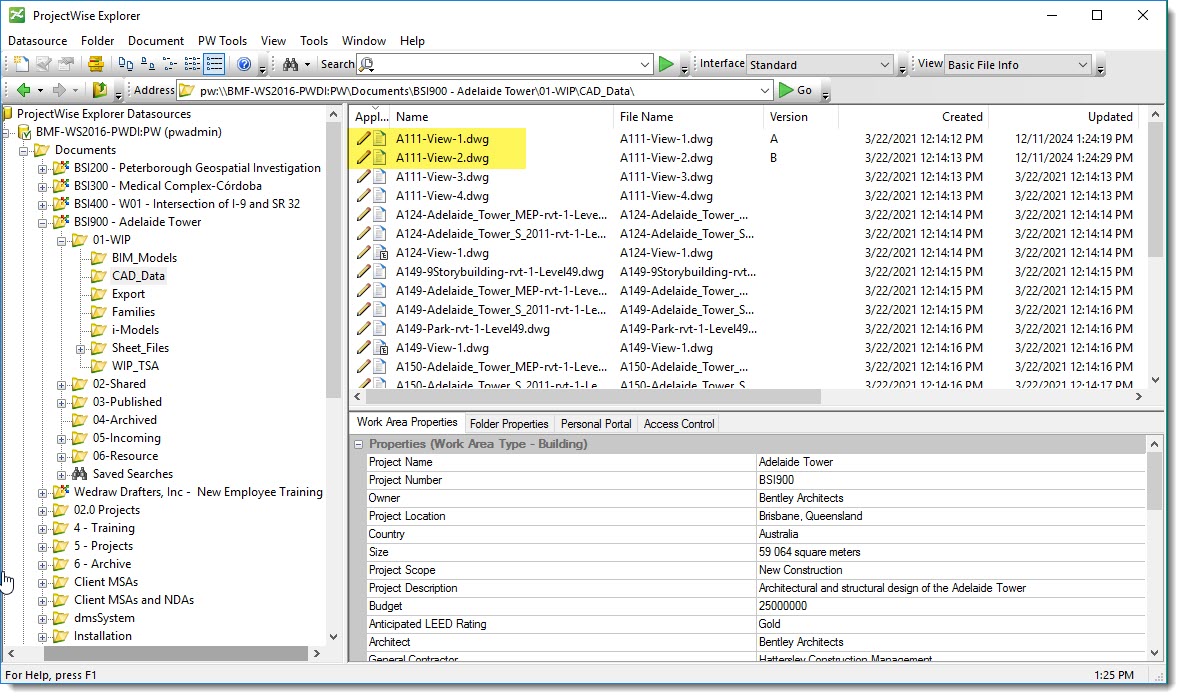
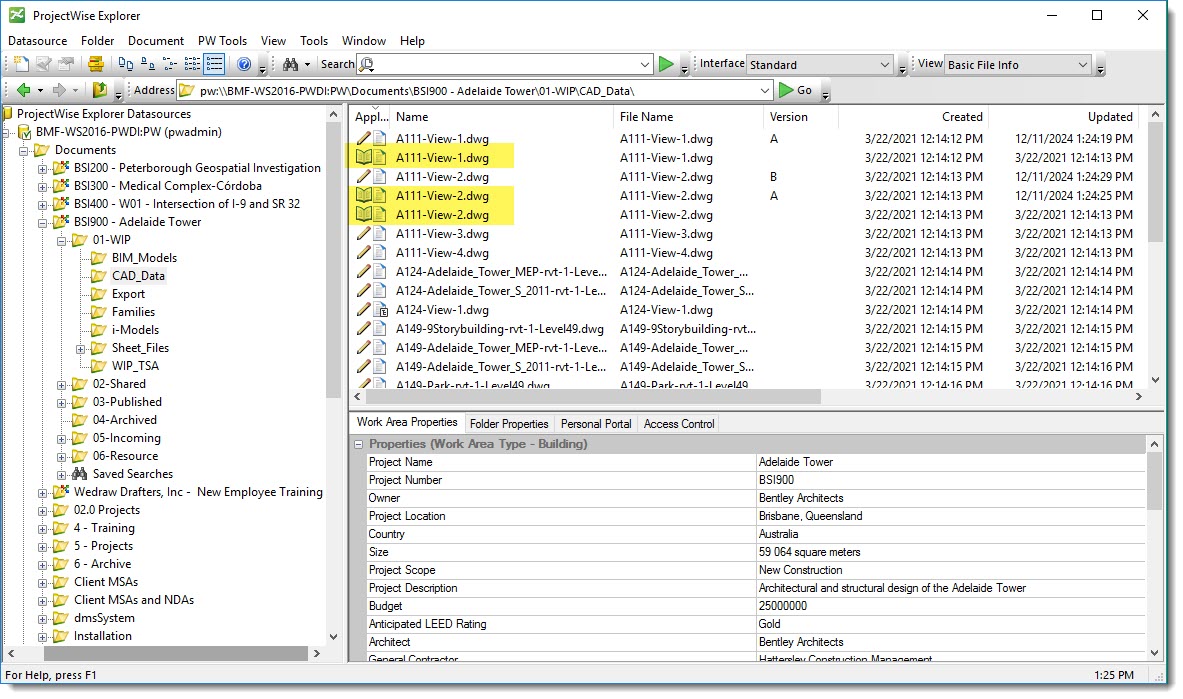
Hopefully, you find this useful.
Please let me know if you have any questions or comments. If you like this post, please click the Like button at the bottom of the page.

 powerwisescripting.blog
[like] Leah Mize reacted to your message:
LikeLike
Hey Brian, this is great! I do have a few questions:
Thank you for the great utility, and all the blog posts as well!
Karl
LikeLike
Hey Karl,
1. The mrr file does not offer a way to add to the view menu. At least I haven’t really looked into it.
2. I have not tested with PW 2024. It works properly within PW 2023 and earlier.
3. You would have to remove the mrr file from the PW bin directory.
Cheers,
Brian
LikeLike
Regarding item 3, I actually had to edit the mrr file to remove the other items, leaving only the Toggle Version Display item. I did keep the PW Tools dropdown menu item and changed the title to Custom Controls and changed the Command Type to Generic Command as opposed to Generic Command (Tools). The (Tools) option places the item in the Tools menu. I have also not found a way (outside possibly via the SDK) to get the toggle command into the View pulldown.
I do not have 2024 to test with at this time.
Karl
LikeLiked by 1 person
Did you ever considered to publish all your work in a git repository?
LikeLike