
In this post, I will provide a sample code snippet to be used within the PowerShell ISE. Snippets are a great way to simplify and improve your coding within the PowerShell ISE. It ensures consistency of code within your PowerShell scripts.
Create New Snippets File
A snippet file can be created in the following folder. You will need to relaunch the PowerShell ISE after a snippet file has been created or updated.
C:\Users\<USERNAME>\Documents\WindowsPowerShell\Snippets
From within the PowerShell ISE.
Use the following to create a new snippet file and open it within the PowerShell ISE.
# Create new snippets file. The new file will be created in the user profile hierarchy.
$SnippetsFileName = "MyNewSnippets"
New-Item -Path "$($env:USERPROFILE)\Documents\WindowsPowerShell\Snippets\$($SnippetsFileName).ps1xml" -Type File -Force -Verbose
# Open new snippet file within PowerShell ISE.
ise "$($env:USERPROFILE)\Documents\WindowsPowerShell\Snippets\$($SnippetsFileName).ps1xml"
Add Required Text
The following text is the required structure for the snippet code(s) to work properly.
<?xml version='1.0' encoding='utf-8' ?>
<Snippets xmlns='http://schemas.microsoft.com/PowerShell/Snippets'>

    <Snippet Version='1.0.0'>
        <Header>
            <Title>ENTER SNIPPET NAME HERE.</Title>
            <Description>ENTER FUNCTION DESCRIPTION HERE.</Description>
            <Author>ENTER AUTHOR NAME HERE.</Author>
            <SnippetTypes>
                <SnippetType>Expansion</SnippetType>
            </SnippetTypes>
        </Header>
        <Code>
            <Script Language='PowerShell' CaretOffset='0'>
<![CDATA[
# Place the snippet code here.
]]>
            </Script>
        </Code>
    </Snippet>

</Snippets>
Add Snippet Code
The following is a code snippet for a new function structure.
- Snippet name: ‘!MyFunction‘
- Snippet description: ‘Inserts a function template snippet.‘
- Snippet Author: ‘Brian Flaherty‘
<Snippet Version='1.0.0'>
    <Header>
        <Title>!MyFunction</Title>
        <Description>Inserts a function template snippet.</Description>
        <Author>Brian Flaherty</Author>
        <SnippetTypes>
            <SnippetType>Expansion</SnippetType>
        </SnippetTypes>
    </Header>
    <Code>
        <Script Language='PowerShell' CaretOffset='0'>
<![CDATA[
FUNCTION Verb-Noun{

    [CmletBinding()]
    param(
        # Parameter description.
        [ValidateNotNullOrEmpty()]
        #[ValidateScript({ Get-PWFolders -FolderID $_ -JustOne })]
        [Parameter(
            HelpMessage = "Parameter description.",
            Mandatory = $true,
            Position = 0)]
        [int/string] $Parameter
    ) #end param...

    BEGN {

        $CmdletName = $MyInvocation.MyCommand.Name
        $StartTime = Get-Date
        Write-Host "[BEGIN] $Start - Entering '$CmdletName' Function..." -ForegroundColor Cyan

    } #end BEGIN...

    PROESS {

        try{

        } catch {
            Write-Warning -Message $_
        }

    } #end PROCESS...

    END{

        $EndTime = Get-Date
        Write-Host "[END] It took $($EndTime - $StartTime) to complete the process." -ForegroundColor Cyan
        Write-Host "[END] $EndTime - Exiting '$CmdletName' Function..." -ForegroundColor Cyan

    } #end END...

} #end FUNCTION Verb-Noun...
# Uncomment when adding to a .psm1 script module.
# Export-ModuleMember -Function Verb-Noun
]]>
        </Script>
    </Code>
</Snippet>
Add Additional Snippets
To add additional snippets, simple copy the <Snippet></Snippet> code structure and paste within the <Snippets></Snippets> structure.
Using Snippets within PowerShell ISE
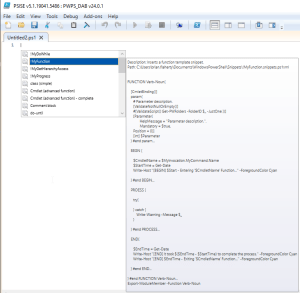
The following shows how to use the code snippet(s). Be sure to relaunch the PowerShell ISE so that the new snippets are available.
From within PowerShell ISE
- CLick Ctrl + J
- A context menu will display listing all of the available snippets.
- Hover over one of the snippets to see the content of it.
- Double-click a snippet to enter it into your script file.
Experiment with it and have fun.
Hopefully, you find this useful. Please let me know if you have any questions or comments. If you like this post, please click the Like button at the bottom of the page.

 powerwisescripting.blog