

Be sure to check out my Scripting4Crypto initiative. It’s a fun way to get into using cryptocurrencies all while getting your PowerShell needs met.
Recently, I have had a few requests for assistance with updating ProjectWise Document attributes using PowerShell. So, I am going to step through the process in this post. Hopefully, you will find it useful.
We will be using the following cmdlets to accomplish this task. All of the ProjectWise related cmdlets are available using the PWPS_DAB module. Take a look at the help for each of the cmdlets to become familiar with their functionality, available parameters, etc.
- Get-PWDocumentsBySearch
- Update-PWDocumentAttributes
You will need to be logged into a ProjectWise datasource with the appropriate permissions to make updates to the document attribute values.
Lets take a look a the parameters for the Update-PWDocumentAttributes cmdlet. Within PowerShell, I typed in Get-Help Update-PWDocumentAttributes -Full. This will return all of the help information available for this cmdlet.

Above, you’ll see that the Update-PWDocumentAttributes cmdlet has three parameters available.
- InputDocuments parameter which accepts one or more ProjectWise Document Objects. These can be passed via the pipeline if desired. In this example, we will not pass the document objects via the pipeline. We are going to set different attribute values for each document.
- Attributes parameter accepts a hash table of attribute and attribute value pairs.
- Example: @{ Milestone = ’30’ }
- ReturnBoolean parameter when included, will return a True if the document attributes are updated successfully, otherwise False.
NOTE: The document object will be returned if the ReturnBoolean parameter is not included.
The following image shows my ProjectWise Environment named PowerShell. This Environment contains four attributes. One is for the title (POWERSHELL), and the other three can be updated for each document, Discipline, Milestone, and Percent Complete.

The following is the folder within ProjectWise Explorer which contains the four documents we will be updating. Each document does not have any attribute values set for Discipline, Milestone, and Percent Complete.
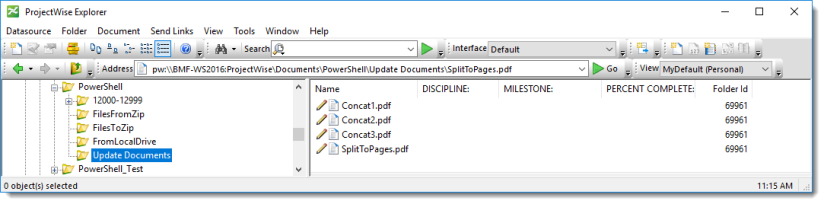
First, we will use the Get-PWDocumentsBySearch to get the ProjectWise document objects we want to update. The following returns four ProjectWise document objects.
# ProjectWise Folder containing the documents to update.
$PWFolder = 'PowerShell\Update Documents'
# Obtain all documents located in the folder.
$PWDocuments = Get-PWDocumentsBySearch -FolderPath $PWFolder -Verbose
If I do a $PWDocuments.Count within PowerShell, you’ll see that it returns 4. Or I can return the names of the four documents using $PWDocuments.Name.
PS D:\> $PWDocuments.Count
4

PS D:\> $PWDocuments.Name
Concat2.pdf
Concat1.pdf
Concat3.pdf
SplitToPages.pdf
Now, that we have our four documents to update, we will loop through each and update the three available document attributes.
<# Index to track which document we are processing.
    Because we are using a foreach loop, I need an index to track the
    current document being processed.  #>
$Index = 0
<# Loop through each of the ProjectWise Documents
    and update the document attributes.  #>
foreach ($PWDocument in $PWDocuments) {
    <# Specify attribute values
        The Discipline attribute value will be the same for all documents. #>
    $Attributes = @{
        Discipline = 'RoadDesign'
    }

    <# The MileStone and TB_PERCENT_COMPLETE attribute values will
        be the same for first and third documents and
        second and fourth documents. #>
    if($Index -eq 0 -or $Index -eq 2) {
        $Attributes.MileStone = 'Open'
        $Attributes.TB_PERCENT_COMPLETE = '20'
    } else {
        $Attributes.MileStone = 'ExportFromProjectWise'
        $Attributes.TB_PERCENT_COMPLETE = '90'
    }

    <# By returning the boolean, we can use a simple if else statement
        to write back to the console whether the process was successful
        or not. #>
    if( Update-PWDocumentAttributes -InputDocuments $PWDocument -Attributes $Attributes -ReturnBoolean ) {
        Write-Verbose -Message "Successfully updated the document attributes for '$($PWDocument.Name)'." -Verbose
    } else {
        # Could return an error or warning here. Up to you.
        Write-Warning -Message "Failed to update the document attributes for '$($PWDocument.Name)'."
    }

    # Increment the index value by one.
    $Index++
}
The following shows the results of the running the PowerShell script.

In the image below, you can see that the four documents attributes were successfully updated.

The following is a link to the full PowerShell script.
How-To-UpdateDocumentAttributesUsingPowerShell
Experiment with it and have fun.
Hopefully, you find this useful. Please let me know if you have any questions or comments. If you like this post, please click the Like button at the bottom of the page.

 powerwisescripting.blog
How do you know “$Attributes.TB_PERCENT_COMPLETE” is PERCENTAGE COMPLETE attribute?
LikeLike
The following should return the ColumnName and corresponding Label for each attribute within the provided Environment.
$EnvironmentName = ‘Simple’
$pwenv = Export-PWEnvironments -Environments $EnvironmentName
$interface = $pwenv | Where TableName -eq ‘Interfaces’
$interface | Select ColumnName, Label
LikeLike
Hi Brain
Do we have any cmlet for manipulating the exchange rules for individual attributes? e.g. I have to add 14 sets of exchange rules for my amendment info and will be very handy if I can code it.
Cheers
E
LikeLike
Hey Elahe, can you provide a little more information please. Are you adding Attribute Exhange rules to Microstation, AutoCAD, Office?
LikeLike
Hi Brian,
I am looking to iterate through a folder in our datasource and if the documents in the folder do not match a certain sequence the script will rename the document accordingly. I have got the renaming part working however I also need to update the attributes of the documents being renamed – this part of the script is not working and returning the following error – WARNING: Attribute update failed: 58129. I have pasted the part of the script causing an issue:
foreach ($PWDocument in $PWDocuments) {
try {
# Format the sequence number with leading zeros
$formattedSequenceNumber = $sequenceNumber.ToString(“D5”)
# Construct the new file name $newFileName = "HE551495-SKAG-HGN-CONWI_CONW-RP-ZQ-$formattedSequenceNumber$($PWDocument.Extension)"# Rename the document Rename-PWDocument -InputDocument $PWDocument -DocumentNewName $newFileName -Verbose# Update the TB_FILE_ID attribute $attributes = @{ TB_FILE_ID = $newFileName } $updateResult = Update-PWDocumentAttributes -InputDocument $PWDocument -Attributes $attributes -Verboseif ($updateResult -eq $null) { Write-Host "Attribute update failed for document ID $($PWDocument.DocumentID): $newFileName" } else { Write-Host "Document ID $($PWDocument.DocumentID) renamed to $newFileName and attribute updated." }# Increment the sequence number $sequenceNumber++ } catch { Write-Host "Error processing document ID $($PWDocument.DocumentID): $_" }}
Write-Host “Documents renamed and attributes updated successfully.”
Any ideas?
LikeLike
Hey P Selva. First, Thank you for visiting my blog. I hope you find it useful. As for your issue, the error you provided indicates you have document name convention implemented and one of the values is not conforming to the convention. Can you verify this.
Cheers,
Brian
LikeLike
Hi Brian, thanks for replying – that is correct I am trying to update the TB_FILE_ID to equal the new name change to the document. I’m assuming this is what is causing the problem?
LikeLike
Hi Brian,
Not sure if this is the correct thread to post on but I am currently had a number of document sets in one folder that need to be mirrored into another location with up to date documents in another location. I am looking to nest the sets in subfolders based on a Location attribute that we have for the sets. This normally works fine for documents $documents = Get-PWDocumentsBySearchWithReturnColumns -FolderPath $folderPath -FileName ‘%.%’ `
-ColumnsToReturn @(‘FI_LOCATION_FULL’, ‘PW_SERIES’, ‘PW_HANDOVER_REQ’). However this command line is not available for for flat sets. Do you have any ideas on a work around?
LikeLike
Hello,
I would recommend taking a look at the cmdlets associated with flatsets.
Get-Command -Noun *Flatset* -Module pwps_dab
Cheers,
Brian
LikeLike
Hi Brian, hope you are well. A quick question, to you knowledge is there a way to set the document workflow state using powershell whilst there is a work flow rules engine in place? I have tried using Set-PWDocumentState but it’s not working.
LikeLike
Hello,
This is not possible as the Work Flow Rules Engine (WRE) tasks precedence. To my knowledge WRE state changes must take place within ProjectWise Explorer. You may want to post this to the Bentley Communiites site for other suggestions.
Hope this helps.
Cheers,
Brian
LikeLike
Hi Brian,
I am trying to export document details from a search query into the powershell terminal however the state column is always returning blank. $doc.Version will reflect document Version but the state column is not returning any results. Any ideas where I can find the correct information?
LikeLike
Can you provide the code you are using. That will make it easier to assist.
Cheers,
Brian
LikeLike