
In this post I will step through the Set-PWEnvironment function. This function can be used to set the environment on a specified folder and can include all sub-folders. The function contains a dynamic variable for selecting the desired Environment Name. It can also remove any attribute sheets associated with existing documents. This is required to update the environment associated with a folder.
All of the ProjectWise related cmdlets are available using the PWPS_DAB module. At the time of this post, I am using version 23.4.0. Take a look at the help for each of the cmdlets to become familiar with their functionality, available parameters, etc.
- Get-PWFolders
- Get-PWEnvironments
- Get-PWDocumentsBySearch
- Remove-PWDocumentSheet
- Set-PWFolderEnvironment
- Show-PWFolderBrowserDialog
FUNCTION Definition
The following is the function wrapper which will contain the remainder of the code.
FUNCTION Set-PWEnvironment {
   <#
        .Synopsis
	Updates the environment associated with a folder(s).
	.DESCRIPTION
	Updates the environment associated with a folder(s). Can also clear the document attribute sheets.
        The EnvironmentName variable is a dynamic variable. It should present a list of the available PW Environments within the current PW datasource.
        .EXAMPLE
	Clears the document attributes from the provided folder ONLY. Then updates the environment for the folder.
        Set-PWEnvironment -EnvironmentName $EnvironmentName -PWFolder $pwFolder -ClearAttributeSheets -Verbose
	.EXAMPLE
	Clears the document attributes from the provided folder and subfolders. Then updates the environment for all folders.
        Set-PWEnvironment -EnvironmentName $EnvironmentName -PWFolder $pwFolder -IncludeSubFolders -ClearAttributeSheets -Verbose
	.INPUTS
	Receives a ProjectWise folder object.
    #>
    [CmdletBinding()]
    param (...) # end param...

    BEGIN {...} # end BEGIN...

    PROCESS {...} # end PROCESS...

    END{...} # end END... } # end FUNCTION Set-PWEnvironment...
Export-ModuleMember -Function Get-PWFolderHierarchyWithFullPath
Parameters
First thing we need to do is create our parameter and value pairs. The help messages will explain the purpose for each parameter. You will see that I have incorporated “ValidateScript” for a few of the parameters. This way I do not have do any additional checks to determine if a specified ProjectWise folder exists. I have created this function with the intentions to enhance the filtering capabilities.
    [CmdletBinding()]
    Param (

        # ProjectWise folders to set the environment for.
        [ValidateNotNullOrEmpty()]
        [ValidateScript( { Get-PWFolders -FolderID $_.ProjectID -Justone })]
        [Parameter(Mandatory = $true)]
        [PWPS_DAB.CommonTypes+ProjectWiseFolder]$PWFolder,

        # When included, all subfolders will be updated.
        [Parameter()]
        [switch] $IncludeSubFolders,

        # When included, the document attribute sheets will be removed.
        [Parameter()]
        [switch] $ClearAttributeSheets

    ) # end Param...
Dynamic Parameter
The following section defines the “EnvironmentName” dynamic parameter. This should display a list of all Environments within the current ProjectWise datasource.
    DynamicParam {
        # Set the dynamic parameters' name
        $ParameterName = 'EnvironmentName'

        # Create the dictionary
        $RuntimeParameterDictionary = New-Object System.Management.Automation.RuntimeDefinedParameterDictionary

        # Create the collection of attributes
        $AttributeCollection = New-Object System.Collections.ObjectModel.Collection[System.Attribute]

        # Create and set the parameters' attributes
        $ParameterAttribute = New-Object System.Management.Automation.ParameterAttribute
        $ParameterAttribute.Mandatory = $true
        $ParameterAttribute.Position = 1

        # Add the attributes to the attributes collection
        $AttributeCollection.Add($ParameterAttribute)

        # Generate and set the ValidateSet

        $arrset = (Get-PWEnvironments).GetEnumerator() | Select-Object -ExpandProperty Name | Sort-Object Name

        $ValidateSetAttribute = New-Object System.Management.Automation.ValidateSetAttribute($arrSet)

        # Add the ValidateSet to the attributes collection
        $AttributeCollection.Add($ValidateSetAttribute)

        # Create and return the dynamic parameter
        $RuntimeParameter = New-Object System.Management.Automation.RuntimeDefinedParameter($ParameterName, [string], $AttributeCollection)
        $RuntimeParameterDictionary.Add($ParameterName, $RuntimeParameter)

        return $RuntimeParameterDictionary
    } # end DynamicParam
BEGIN
I want to take a second and point out a couple of conventions that I use in my scripts. First, you may notice that I put a comment at the end of many of the blocks of code. Doing this makes it easier for me to determine where a block of code starts and ends. Comes in handy when troubleshooting a script. I also add text ([BEGIN], [PROCESS], [END]) in the output messages (Write-Verbose, Write-Warning, Write-Error) corresponding to the section of the script I am in. Again, this makes it obvious where something occurs within the script.
    BEGIN {

     	$CmdletName = $MyInvocation.MyCommand.Name
        $StartTime = Get-Date
        Write-Verbose -Message "[BEGIN] $StartTime - Entering '$CmdletName' Function..."

        $pwFolders = $PWFolder
        $EnvironmentName = $PSBoundParameters[$ParameterName]

    } # end BEGIN...
PROCESS
Now, we will proceed to the PROCESS code block. Here we will determine if the sub-folders should be updated. If yes, we will get the ProjectWise folder object(s) for each sub-folder.
    PROCESS {

        if($IncludeSubFolders){
            $pwFolders = Get-PWFolders -FolderID $PWFolder.ProjectID
            Write-Verbose -Message "$($pwFolders.Count) folders to update."
        }

        Write-Verbose -Message "Setting $($pwFolders.Count) folders to environment '$EnvironmentName'."
Next we will loop through each of the ProjectWise folder objects. We will clear the document attribute sheets if the “ClearAttributeSheets” switch parameter is provided. Then we will update the environment associated with the folder(s). Then exit the PROCESS code block.
foreach($pwf in $pwFolders){
            try{

                #region CLEAR ATTRIBUTE SHEETS

                try{
                    if($ClearAttributeSheets){
                        if($pwDocs = Get-PWDocumentsBySearch -FolderID $pwf.ProjectID -JustThisFolder -ErrorAction Stop -WarningAction Continue ){
                            Write-Verbose -Message "Clearing document attribute sheets from $($pwDocs.Count) documents."
                            $pwDocs = Remove-PWDocumentSheet -InputDocument $pwDocs -ErrorAction Stop
                        }
                    }
                } catch {
                    throw New-Object System.Exception("Error occurred while clearing attribute sheets. $($_)")
                }

                #endregion CLEAR ATTRIBUTE SHEETS

                #region UPDATE ENVIRONMENT

                try{
                    # Set the environment for all selected folders.
                    Set-PWFolderEnvironment -InputFolder $pwf -NewEnvironment $EnvironmentName -ErrorAction Stop
                    Write-Verbose -Message "Updated '$($pwf.Name)'."
                } catch {
                    throw New-Object System.Exception("Error occurred while attempting to update the associated Environment.")
                }

                #endregion UPDATE ENVIRONMENT

            } catch {
                Write-Warning -Message "$($pwf.Name) ; $($_.Exception.Message)"
            }
        } # end foreach($pwf in $pwFolders...

    } # end PROCESS...
END
Lastly, we will proceed to the END block of code.
    END {

        $EndTime = Get-Date
        Write-Verbose -Message "[END] It took $($EndTime - $StartTime) to complete the process."
        Write-Verbose -Message "[END] $EndTime - Exiting '$CmdletName' Function..."

    } # end END...
Using the Function
To use the function we need to get the parent ProjectWise folder to set the environment for. Include the -IncludeSubFolders and -ClearAttributeSheets switch parameters.
I used the Show-PWFolderBrowserDialog to quickly select the folder. You can use the method of your choice to get the parent folder object.
$pwFolder = Show-PWFolderBrowserDialog -InitialFolderPath 'Projects'
Set-PWEnvironment -EnvironmentName Simple -PWFolder $pwFolder -IncludeSubFolders -ClearAttributeSheets -Verbose
The following shows a sample output.

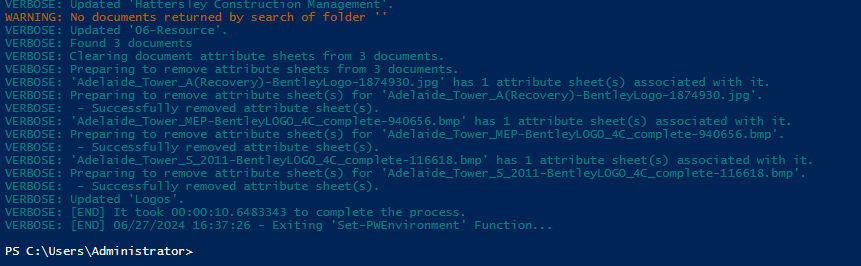
The following is a link to the full PowerShell script.
Experiment with it and have fun. Hopefully, you find this useful. Please let me know if you have any questions or comments. If you like this post, please click the Like button at the bottom of the page.

 powerwisescripting.blog
Thanks Brian for sharing as always! I also just want to share that the previous versions of the documents (especially if applied with document code) needs to be removed as well, so I add “-GetVersionsToo” in the “Get-PWDocumentsBySearch” cmdlet then remove the sheets.
Otherwise it doesn’t set the new environment.
LikeLike
I did not take that into consideration. Thanks.
LikeLike