

In this post, I'll show a function to refresh the ProjectWise Explorer Client from PowerShell. Many thanks to Kevin Van Haaren for this. He provided the initial function.FUNCTION Definition
The following is the function wrapper which will contain the remainder of the code.
<#
.Synopsis
  Refresh the datasource list within ProjectWise Explorer Client dialog.
.DESCRIPTION
  Refresh the datasource list within ProjectWise Explorer Client dialog. The refresh process varies based on the item selected.
.EXAMPLE
  Refresh-PWExplorer -Verbose
#>
FUNCTION Refresh-PWExplorer {

    [CmdletBinding()]
    param (...) # end param...

    BEGIN {...} # end BEGIN...

    PROCESS {...} # end PROCESS...

    END{...} # end END...
} # end FUNCTION Refresh-PWExplorer...
Export-ModuleMember -Function Refresh-PWExplorer
Parameters
There aren’t any parameters provided with this function.
param (
) # end param...
BEGIN
I want to take a second and point out a couple of conventions that I use in my scripts. First, you may notice that I put a comment at the end of many of the blocks of code. Doing this makes it easier for me to determine where a block of code starts and ends. Comes in handy when troubleshooting a script. I also add text ([BEGIN], [PROCESS], [END]) in the output messages (Write-Verbose, Write-Warning, Write-Error) corresponding to the section of the script I am in. Again, this makes it obvious where something occurs within the script.
BEGIN {
    $CmdletName = $MyInvocation.MyCommand.Name
    $StartTime = Get-Date
    Write-Verbose -Message "[BEGIN] $StartTime - Entering '$CmdletName' Function..."
} # end BEGIN...
PROCESS
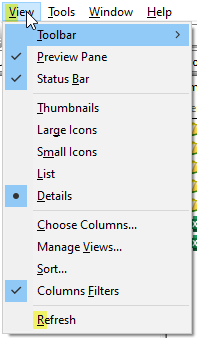
Now, we will proceed to the PROCESS code block. which determines if the ProjectWise Explorer Client is open by selecting the pwc process. If it is, the script proceeds to simulate the menu and menu item using shortcut keys (%vr). The corresponding key sequence would be (%) [ALT] + (v) View, then (r) Refresh.
PROCESS {
    Write-Verbose -Message "[PROCESS] Getting ProjectWise Explorer Client process."
    try {
        if($PWEWindow = Get-Process -Name pwc -ErrorAction Stop |
            Where-Object {$_.MainWindowTitle -ne ""} |
            Select-Object MainWindowTitle -First 1){
            $wshell = New-Object -ComObject WScript.Shell
            $wshell.AppActivate($PWEWindow.MainWindowTitle)
            # Wait for a second to ensure PWE is active.
            Start-Sleep -Seconds 1
            # The following represents a sequence of keystrokes. [ALT] + V, then R.
            # Selects the View menu within ProjectWise, then selects the Refresh menu item.
            $wshell.SendKeys("%vr")
            Write-Verbose -Message "[PROCESS] ProjectWise Explorer has been refreshed."
        } else {
            throw "Unable to find ProjectWise Explorer process."
        }

    } catch {
        Write-Warning -Message "[PROCESS] $_"
    } # end try/catch...
} # end PROCESS...
END
Lastly, we will proceed to the END block of code.
END {

    $EndTime = Get-Date
    Write-Verbose -Message "[END] It took $($EndTime - $StartTime) to complete the process."
    Write-Verbose -Message "[END] $EndTime - Exiting '$CmdletName' Function..."

} # end END...
The following shows the View Menu within the ProjectWise Explorer client. When you press the [ALT] key, the shortcut keys will be underlined within the menu.
Experiment with it and have fun. Hopefully, you find this useful.
Please let me know if you have any questions or comments. If you like this post, please click the Like button at the bottom of the page.

 powerwisescripting.blog
Brian, Thanks for the updated script. I can only get this to work if I use an Admin account? Is that normal? I also noticed it will “refresh” the datasource which is active. I had to select the main “ProjectWise Explorer Datasources” and then run the script for it to refresh the datasource listings.
LikeLike
Hello Gene,
I was not aware of the admin requirement. Thanks for letting me know. What you state is correct that it will refresh the active datasources.
LikeLike
Brian, thanks for the updated script.
It only works using an Admin account. Is that normal?
Also, PWE “MUST” be at the top of the list in order to Refresh the datasources.
Otherwise it just refreshes the current PWE folder.
How do I get PowerShell to select the top?
“ProjectWise Explorer Datasources” and THEN refresh.
LikeLike
Hello Gene,
I have not been able to figure out how to select the top PW datasource. If you figure it out, please share.
LikeLike